
Table of Contents
Reason For Visit: Charges
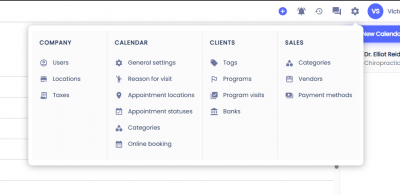
To configure the automatic charges on a Reason for Visit, click on the gear icon on the top menu, then select Reasons For Visit.
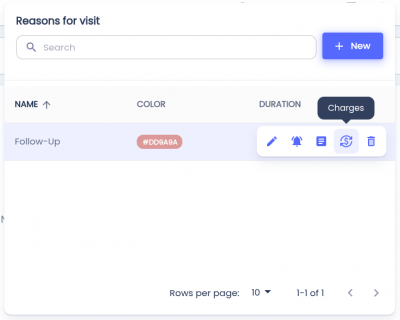
 Hover over the Reason for Visit you'd like to configure and click the button with the dollar icon.
Automated Charges
Automated charges create an invoice on the patient's ledger when the appointment status is set to Arrived.
To add a charge, click on the plus button next to Add Charge.
- Products and Services - Select the a product or service from the dropdown.
- Bank - the system will attempt to apply a payment from the bank to the item if the bank is present on the patient's profile.
Note: The Products and Services dropdown is linked to the Products & Services.
Note: The Bank dropdown is linked to the Banks.
To delete a charge, click the - button next to the charge.
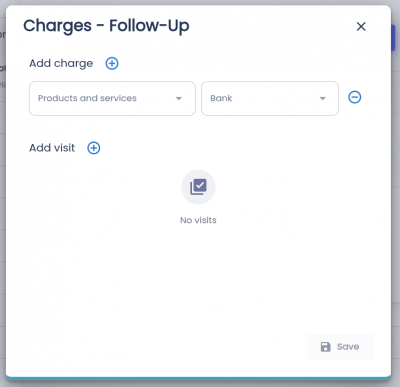
To save the changes, click the Save button at the bottom right.
Automated Visits
Automated visits are applied to Program Visits if a program visit is set up on the patient
To add an automated visits, click on the plus button next to Add visit.
- Program Visits - Program visit that will be deducted.
Note: The Program Visits dropdown is linked to the Program Visits.
To delete a visit, click the - button next to the visit.
To save the changes, click the Save button at the bottom right.