
calendar:edit_calendar
This is an old revision of the document!
Editing a Calendar
To edit a calendar first go to the calendar page using the menu on the left side.
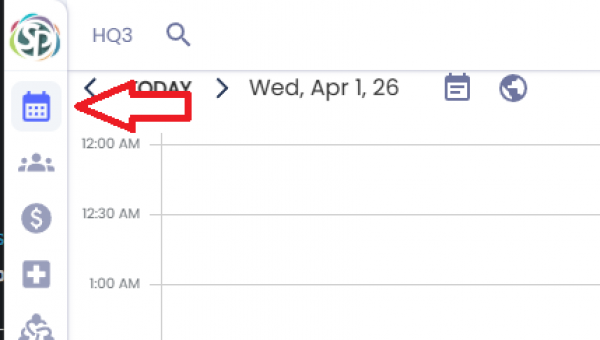
You will then have to click the calendars option.
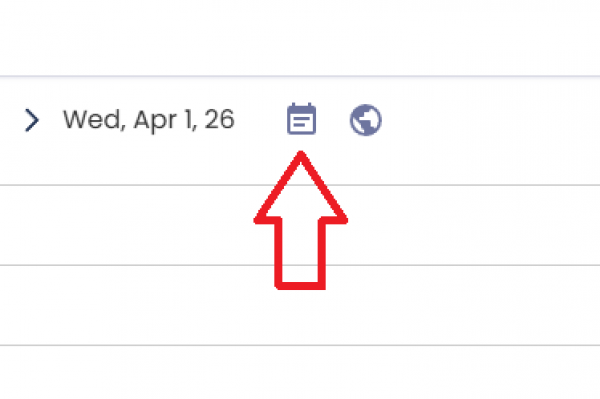
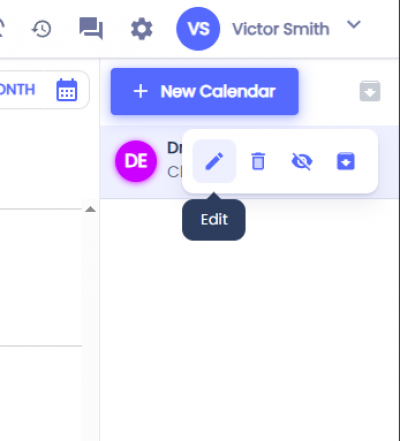
This will display a sidebar on the right side with your current calendars. Hover over the calendar you want to edit and click the pencil icon.
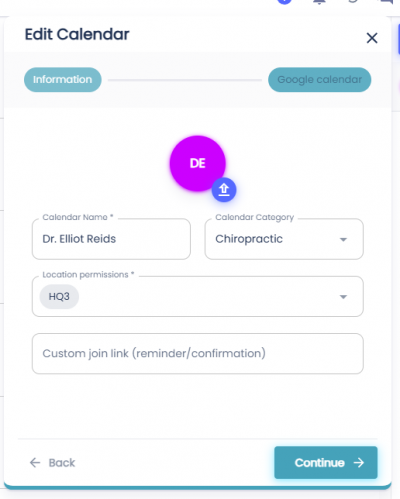
The Calendar Name and the Location are required. The image, calendar category and custom join link are optional.
- Image - You can click on the color to change the color shown on the calendar or you can click the upload button to upload a custom image.
- Calendar Name - Name of the column when seen in the calendar.
- Calendar Category - The category will show under the calendar. The calendar page will also allow you to filter which calendars are visible by categories.
- Location permissions - Which locations have access to this calendar.
- Custom join link - Sent in confirmation/reminder emails when an appointment is booked
Once finished you can click the Continue button, then the Update button.
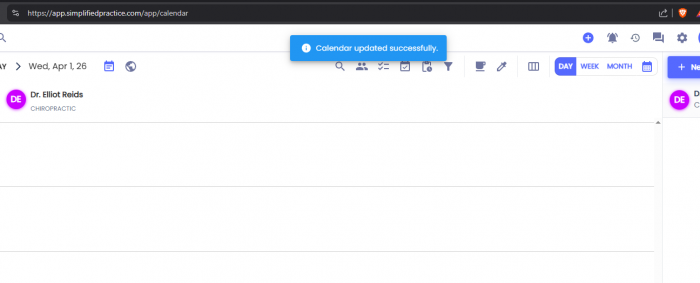
If the calendar was edited successfully you will see a success notification.
 for_visit|Create Reason For Visit]]
Related Pages:
calendar/edit_calendar.1775168933.txt.gz · Last modified: by architect