
calendar:create_calendar
This is an old revision of the document!
Creating a Calendar
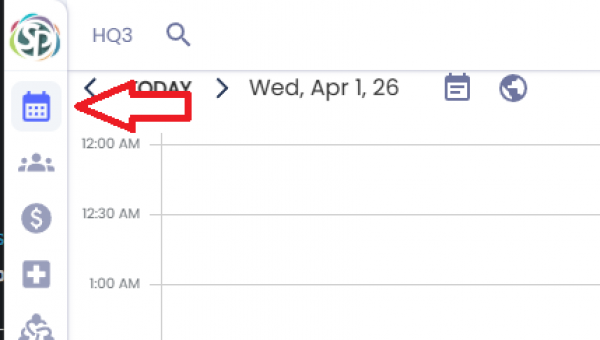
To create a new calendar first go to the calendar page using the menu on the left side.
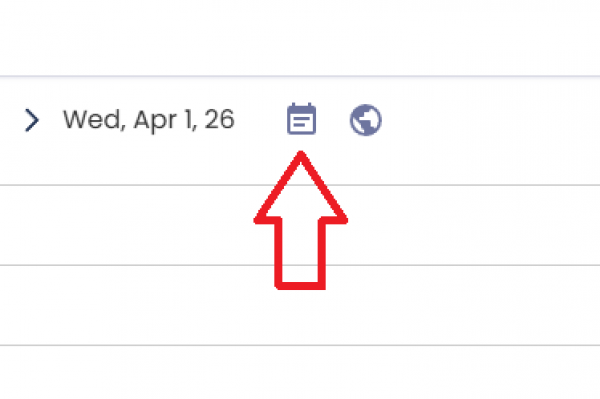
You will then have to click the calendars option.
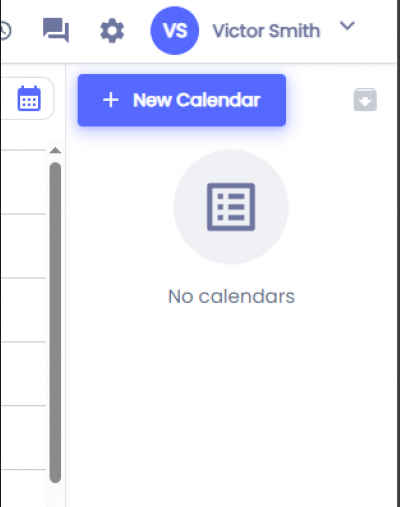
This will display a sidebar on the right side with your current calendars. If you haven't created any calendars yet you'll see the No Calendars message. Click on the + New Calendar button.
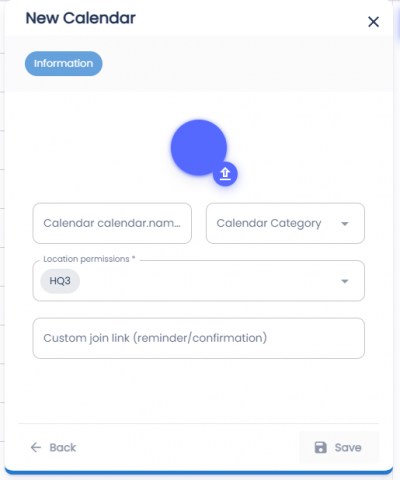
The Calendar Name and the Location are required. The image, calendar category and custom join link are optional.
- Image - You can click on the color to change the color shown on the calendar or you can click the upload button to upload a custom image.
- Calendar Name - Name of the column when seen in the calendar.
- Calendar Category - The category will show under the calendar. The calendar page will also allow you to filter which calendars are visible by categories.
- Location permissions - Which locations have access to this calendar.
- Custom join link - Sent in confirmation/reminder emails when an appointment is booked
Once finished you can click the Save button
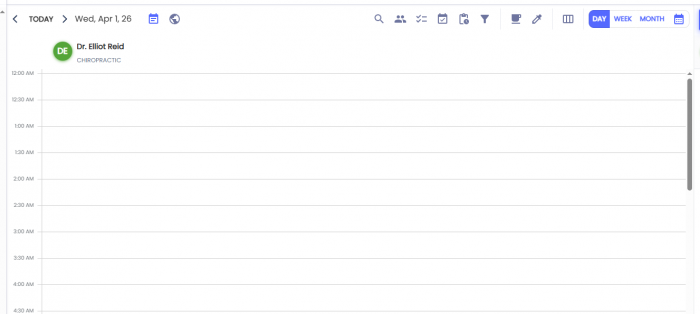
If the calendar was created successfully you will see the newly created calendar as a column in the calendar pages as well as in the right sidebar.
Next Step:
Related Pages:
calendar/create_calendar.1775593064.txt.gz · Last modified: by architect