
Table of Contents
Creating an Appointment
Navigation
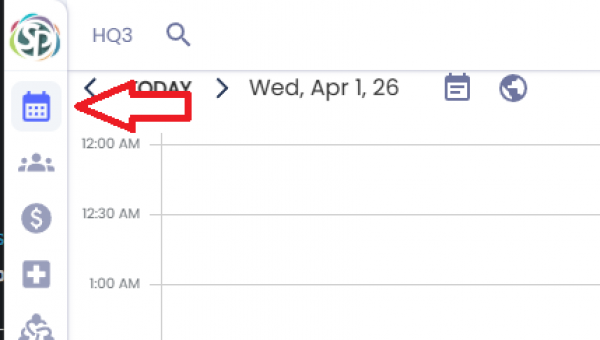
Click the calendar button on the menu on the left-hand navigation menu or by use the keyboard shortcut [CTRL+1].
Creating the Appointment
- Step 1: To initiate a new appointment, click and drag your cursor over the desired time slot on the calendar grid. This action defines the initial start and end time and triggers the Appointment Configuration dialog.
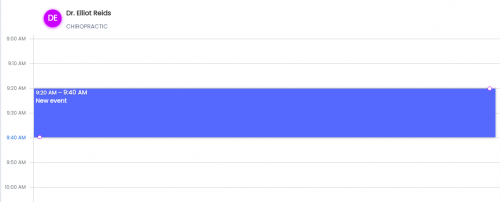
- Step 2: Fill out the appointment details in the dialog.
- Step 3: Click Save.
Field Reference
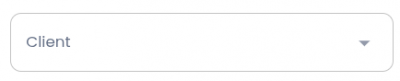
Client
The client assigned to this appointment. If set a email and text notification may be sent to the client depending on the Reason for visit settings. The dropdown is populated by your client list.
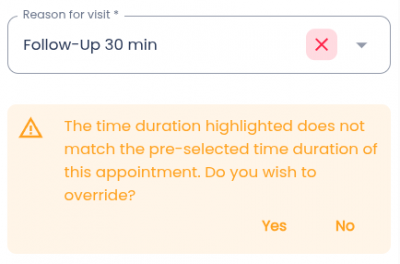
Reason for visit (Required)
Determines the duration of the appointment, the default appointment location, and the content of the confirmation/reminders sent. If the duration does not match the selected start and end time it will ask you if you want to overwrite the reason for visit duration.
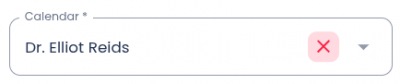
Calendar (Required)
Defines which calendar the appointment will be assigned to. Defaults to the calendar that was clicked when creating the appointment.
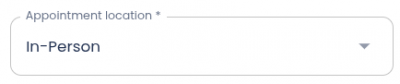
Appointment Location (Required)
Defaults to Reason for visit settings. In-Person, Telephone, or Video.
Time Zone
Timezone being used for the appointment. Defaults to organization timezone.

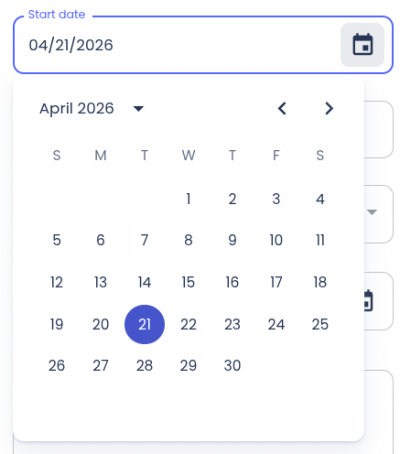
Start date
Defaults to date that was clicked when creating the appointment.
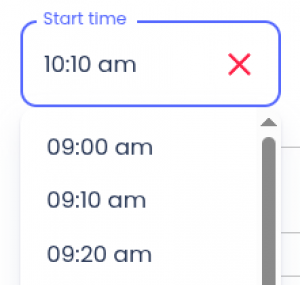
Start time
Defaults to the start time clicked when creating the appointment.
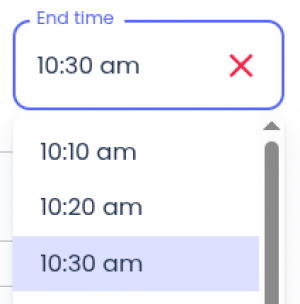
End time
Defaults to the end time clicked when creating the appointment.
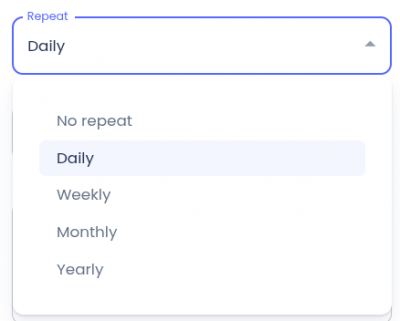
Repeat
Notes
Actions
Save: Creates the appointment and closes the dialog.
Cancel: Discards all information and closes the dialog.