Table of Contents
Reason For Visit: Notifications
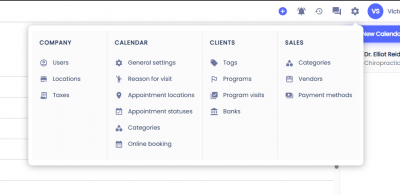
To configure the notifications on a Reason for Visit first click on the gear icon on the top menu, then select Reasons For Visit.
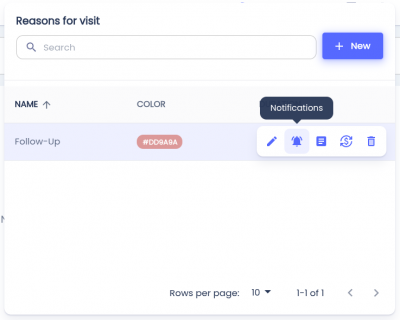
 Hover over the Reason for Visit you'd like to configure and click the button with the bell icon.
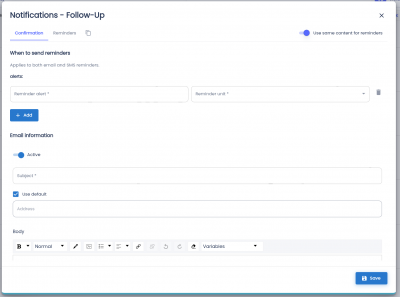
Within this dialog you'll be able to configure both confirmations and reminders.
Separating Reminders & Confirmations
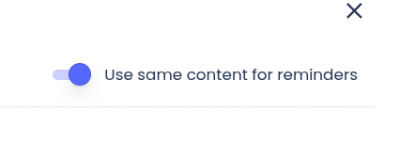
To use the same content for both reminders and confirmations, select the checkbox in the top-right corner. Enabling this will disable the Reminders tab, allowing you to manage all messaging via the Confirmations settings.
Managing Appointment Reminders
Customize when and how many notifications are sent by adding Alerts. Each alert requires two parts
- Reminder value - The number of units (e.g., 5).
- Reminder unit - The time increment (Days or Hours)
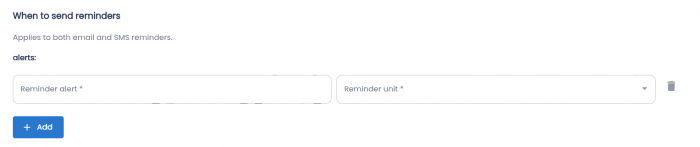
Add: Click the +Add button to create multiple reminders.
Delete: Click the Trash Can icon to remove an alert.
Email Information
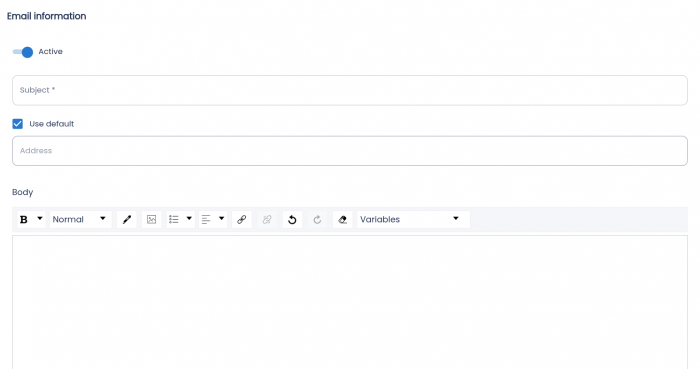
To activate emails select the checkbox named Active below the Email information header.
- Subject (Required) - The email subject line seen by the client
- Use Default - Enable this to automatically use the location’s address for the appointment.
- Address - Enter a custom address if Use Default is not selected.
- Body - The main message content of the email. This field supports variables.
Email Attachments
To send files to the client, drag files to the field or click on the field. The files have to be .pdf and can not exceed 2 mb.
Note: If you'd like to include fillable forms please refer to Reason for Visit: Forms.

Text Message
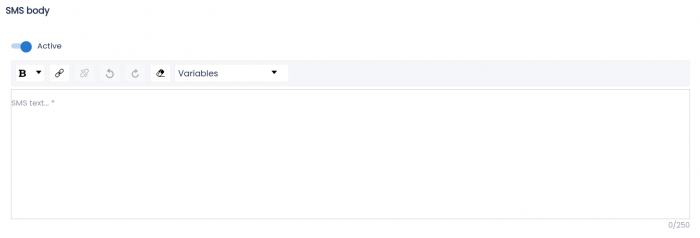
To activate texts select the checkbox named Active below the SMS body header.
- Body - The main message content of the text. This field supports variables.
Variables
To insert appointment details automatically, select a variable from the dropdown menu. These placeholders will be replaced with real-time appointment information when the message is sent.
- Client - Full name (First and Last).
- Reason - The title of the “Reason for Visit.”
- Location - The meeting type (In-Person, Telephone, Video).
- Date - Date of appointment.
- Time - Time of appointment.
- Calendar Name - The name of the specific calendar used.
Example:
"Hello {{client}}, your appointment is on {{date}} at {{time}}."