Editing a Calendar
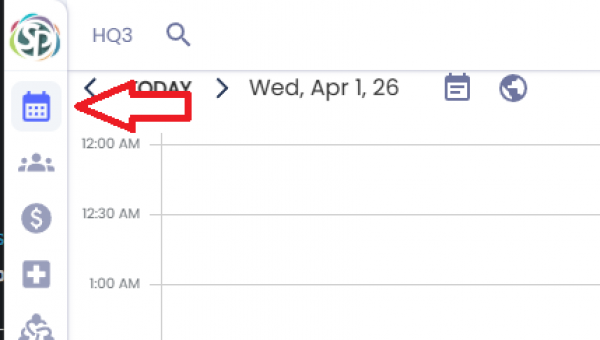
To edit a calendar, go to the calendar page using the menu on the left side or by clicking [CTRL+1].
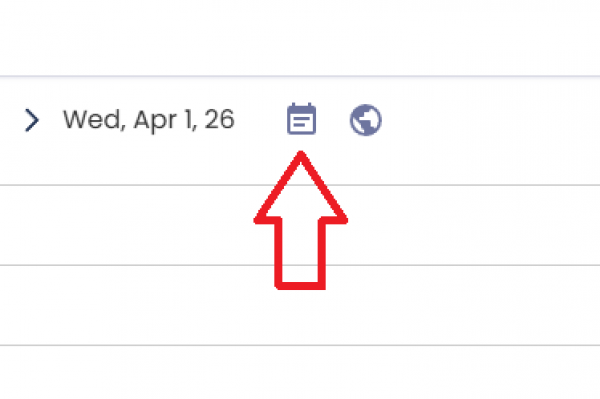
Click the Calendar button next to the date. This will display a sidebar on the right side with your current calendars.
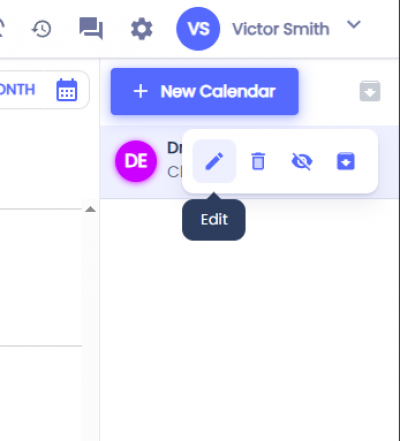
Hover over the calendar you want to edit and click the pencil icon.
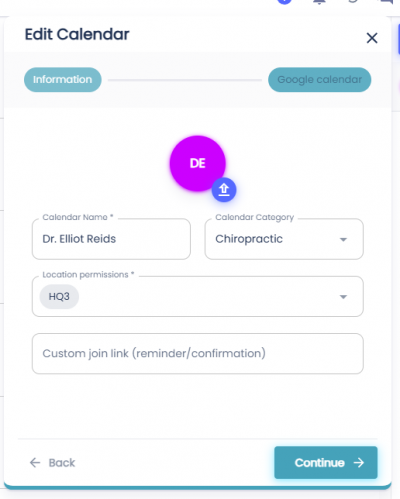
To save the calendar fill out the fields:
- Image - Click on the color to change the color shown on the calendar or click the upload button to upload a custom image.
- Calendar Name (Required) - Name of the column when seen in the calendar.
- Calendar Category - The category will show under the calendar. The calendar page will also allow you to filter which calendars are visible by categories.
- Location permissions (Required) - Which locations have access to this calendar.
- Custom join link - Sent in confirmation/reminder emails when an appointment is booked
Click the Update button.
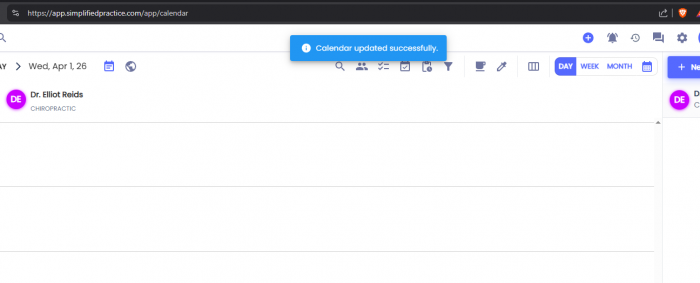
If the calendar was updated successfully, then there will be a toast with the words 'Calendar updated successfully'.